Guides · Getting found · 6 of 12
What your App Store screenshots should show, and in what order
Your first screenshots show in search results, so for many people they are the whole pitch. Here is what to show first, and the same pictures for social posts.
Keywords bring someone to your app in search. Screenshots decide whether they tap it, and then whether they download. It is also the part where an afternoon of work shows on your page the same week.
What should my first App Store screenshot show?
The app doing the job it is for, with real content in it, and one plain sentence saying what that job is.
Apple’s guidance on product pages says that when an app has no preview video, the first one to three screenshots appear in search results. So for many shoppers, those screenshots are your app. They see them beside the other results before they ever open your page.
The screenshots are the pitch
Assume nobody reads your description. It sits below the screenshots, and most of it hides behind a “more” link. Most people decide before they reach a sentence you wrote.
In those few seconds a shopper asks one thing: what is this, and is it for me? The screenshots are where you answer. Treat the set as the pitch, not as documentation of every screen.
Show the app doing its job
The first screenshot carries most of the story, because every visitor sees it and many never swipe past it.
Show the app in use, with real content. A budgeting app shows a month with real numbers in it, not an empty list with a plus button. A journal shows a written entry, not a blank page. An empty screen shows the app before it has done anything for anyone.
Three first screenshots that waste the slot:
- The logo splash. Your icon and your name, enlarged, tell a shopper nothing the search result did not.
- Settings. Nobody downloads an app for its preferences.
- A frame with no content. A neat tab bar around an empty list reads as an app with nothing in it.
Then order the rest. Screenshot one is the main job. Two and three are the next most convincing things the app does. Anything that needs a paragraph to explain goes last, or not at all.
Captions that say what the person gets
A bare screen leaves the shopper to work out what they are looking at. A short line above it does that for them.
Write each caption as the outcome, in the words a person would use. “See where your money went” beats “Advanced categorization engine”. A feature name describes the machinery. An outcome describes the shopper’s day with the app in it.
Keep each caption to a handful of words, large enough to read at the size search results show. One caption, one point: two claims in one caption means neither gets read. Keep the set in one voice and one look, so it reads as one pitch.
The sizes Apple asks for
Apple asks for screenshots at exact pixel sizes. App Store Connect (Apple’s website for managing your apps) shows the list next to the upload slots: iPhone sizes, iPad sizes if your app runs on iPad, and the Mac size for a Mac app. The list changes when Apple ships new hardware, so trust the upload page over an old blog post.
This eats a day when the set is built once per size: export at one size, find a caption no longer fits at another, rebuild. Lay the design out once and change the export size instead. The same background, captions and device frames are drawn again at each size.
What is normal: redoing a set two or three times before it reads right. A stranger’s first reading is the test. Yours never counts, because you already know what the app does.
The same pictures for social posts
The screenshots that sell your app on the store also sell it in a post. Each network has its own shapes: a square and a tall post on Instagram, a wide post on X, a thumbnail on YouTube, a tall pin on Pinterest. A screenshot cut to the wrong shape loses its caption or its device.
Build the social pictures from the same design as the store set. The same caption, the same screen, laid out again for each shape. A shopper who saw your post then meets the same picture on your store page.
Do this today
Before you open any design tool, write three sentences, one for each of your first three screenshots.
- For each, write what the person gets, in a stranger’s words, in eight words or fewer.
- Under each sentence, name the one screen of your app that shows it, with real content in it.
- Read the three sentences to someone who has never seen the app. Ask them what the app does. If their answer is not your first sentence, rewrite it.
In ASOblick
The studio shows your slide on a canvas at the size Apple asks for, with your screenshot in a device frame and your caption on it. You lay the set out once. Changing the size draws the same design again, and the device menu sets the frame around each screen, from a bare rounded screenshot to an iPhone, an iPad, a MacBook or a frame you import. The sizes cover Apple’s iPhone, iPad and Mac screenshots, and the social sizes for Instagram, X, YouTube and Pinterest. Export Set writes the whole set in one step, ready to upload. Every size and every export is in every plan, with no watermark. Right after you export, the Log New Screenshots button at the top of the window opens a Log entry already filled in for that app. When a new set goes live, the Log writes the change down by itself once it has seen the new screenshots on two days, and shows what came after it: your searches, ratings, category rank and written reviews, plus downloads and revenue when your sales are connected.
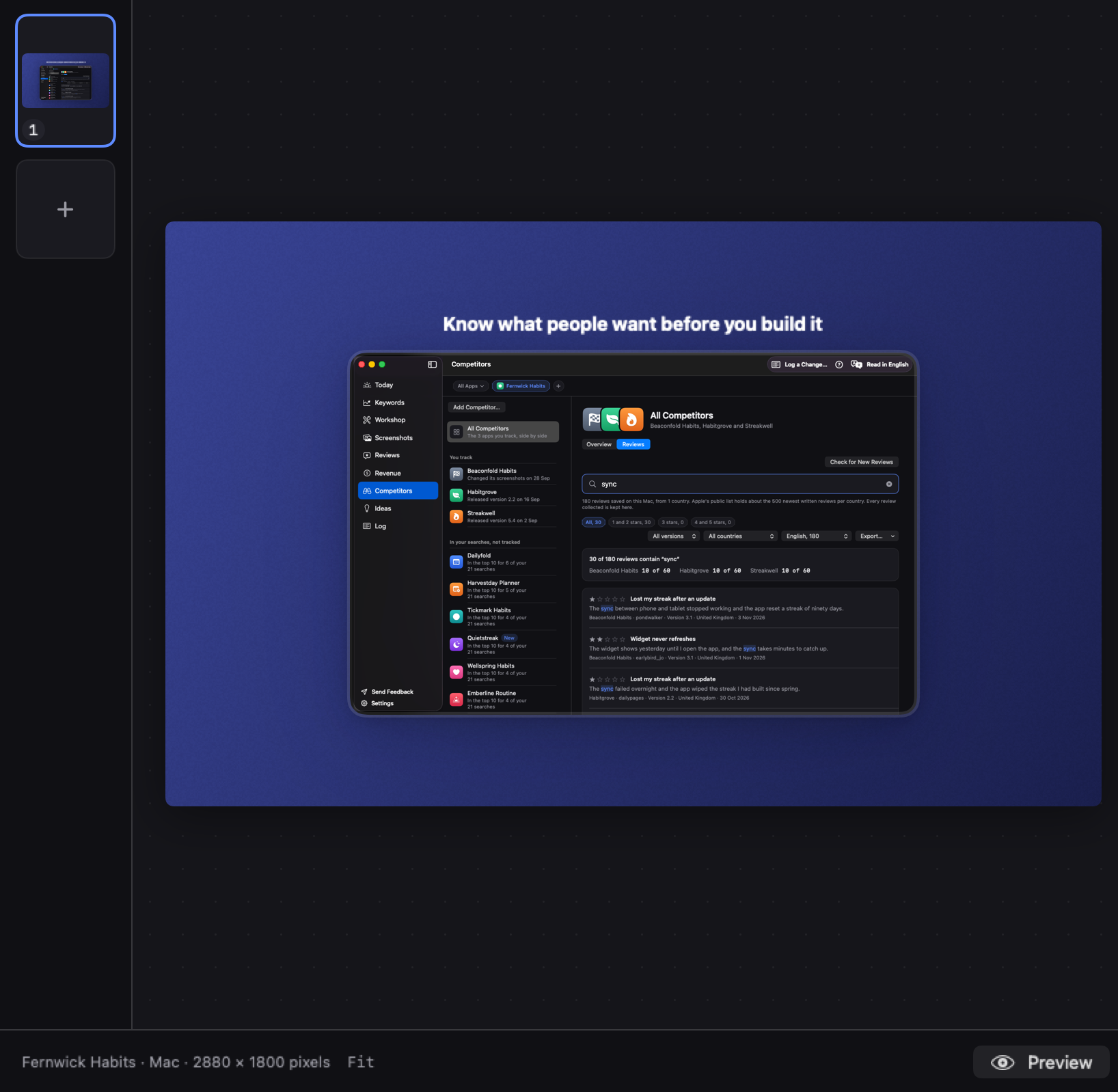
The studio is part of every plan, the free one included, with nothing held back.
Next on the path: What people want from an app like yours, in your competitors' 1 and 2 star reviews