Guides · Getting found · 3 of 12
App name, subtitle and keyword field: what to put in each
Name, subtitle and keyword field hold 30, 30 and 100 characters, and Apple's search reads all three. What goes in each, and five ways characters go to waste.
The words Apple can match a search against come from three small fields. Two of them are read by people as well as by Apple, and one is read by Apple alone. Getting them right is an afternoon of work, and the same few mistakes turn up again and again.
What goes in the app name, the subtitle and the keyword field?
All three sit in App Store Connect (Apple’s website for managing your apps), on the page where you edit a version’s store listing.
- The app name, up to 30 characters. It shows on your store page and in search results.
- The subtitle, up to 30 characters. It is the short line under the name, on your page and in search results.
- The keyword field, up to 100 characters. It shows nowhere. Apple reads it, and nobody else can see it, yours or anyone’s.
Changes to all three go live with your next version, after review. Saving them changes nothing on the store by itself.
What Apple says its search reads
Apple’s page on App Store search says results are based on “text relevance (matches for your app’s title, subtitle, keywords, and primary category), as well as user behavior (downloads, ratings and reviews, and more)”. Its App Store Connect reference adds that your app “is searchable by app name and company name”.
Apple does not say how words from different fields combine, or whether a search needs every word a person types to be in your fields. It does not publish how it weighs the fields against each other either. Anyone quoting you a ranking of them, such as “the name counts more than the subtitle”, is guessing.
What Apple does ask is that the words describe the app: “Be specific when describing your app’s features and functionality to help the search algorithm surface your app in relevant searches.” That is why the three fields are best written together, as one description of what the app does, with no word spent twice.
The name: 30 characters people read first
The name is what a shopper sees first. An invented word on its own spends the whole field on something nobody searches for.
A pattern many indie apps use is the brand plus the job: your name, a colon, then a plain description of what the app does. “Tallowby: Habit Tracker” does more than “Tallowby”, because the second half is a phrase people type.
The subtitle: 30 characters with a different job
The subtitle finishes the sentence the name started. If the name already says “Habit Tracker”, repeating it here spends 13 characters on words Apple has already read. Put the specifics here: who it is for, or the one thing it does differently.
Write it the way a person would say it. It sits under your name in search results, beside the other apps a shopper is choosing between. A slogan that could belong to any app in the category does neither job.
The keyword field: 100 characters, commas, no spaces
The rules are short:
- 100 characters in total, and the commas count toward them.
- Separate words with commas. A space after a comma spends a character on nothing.
- Phrases are allowed. Apple’s own example is
Property,House,Real Estate: a space inside the phrase, none beside the commas. - A word already in your name or subtitle does not need repeating.
So the field reads planner,routine,streak,journal,reminder and not planner,routine,streak,streaks,journal,reminder,reminders. The first spends 39 characters on five words. The second spends 57 characters on the same five words, because “streaks” and “reminders” are plurals of words already there.
Five places characters go to waste
Count each of these against your own field:
- Words from your name or subtitle. They are read from there already.
- A word listed twice in the keyword field. The second copy buys nothing.
- The word “app”. Apple’s own keyword guidance says not to use it.
- A plural of a word you already have. Apple’s guidance says not to add both, so “timer” is enough without “timers”.
- Words nobody searches with. A word that fits your app and that no shopper types holds characters a searched word could use. The guide on picking keywords shows how to read what people type.
Apple’s same pages also ask you to leave out your company name, the names of categories, the word “game”, and filler words such as “the” and “to”.
What is normal: finding words from your own name in a keyword field you wrote months ago. Nobody can see another app’s keyword field, so there is no one else’s to copy.
Do this today
Open a text file and spend half an hour:
- Write your current name, subtitle and keyword field, one per line, and the character count of each.
- Strike every word in the keyword field that is already in the name or subtitle, every second copy of a word, the word “app”, and every plural of a word you already have.
- Under the three lines, write the ten searches you most want to be found by.
- Beside each search, write which of its words are in the three lines and which are not. A search whose words are missing from all three is the first place to look when you write your next version.
In ASOblick
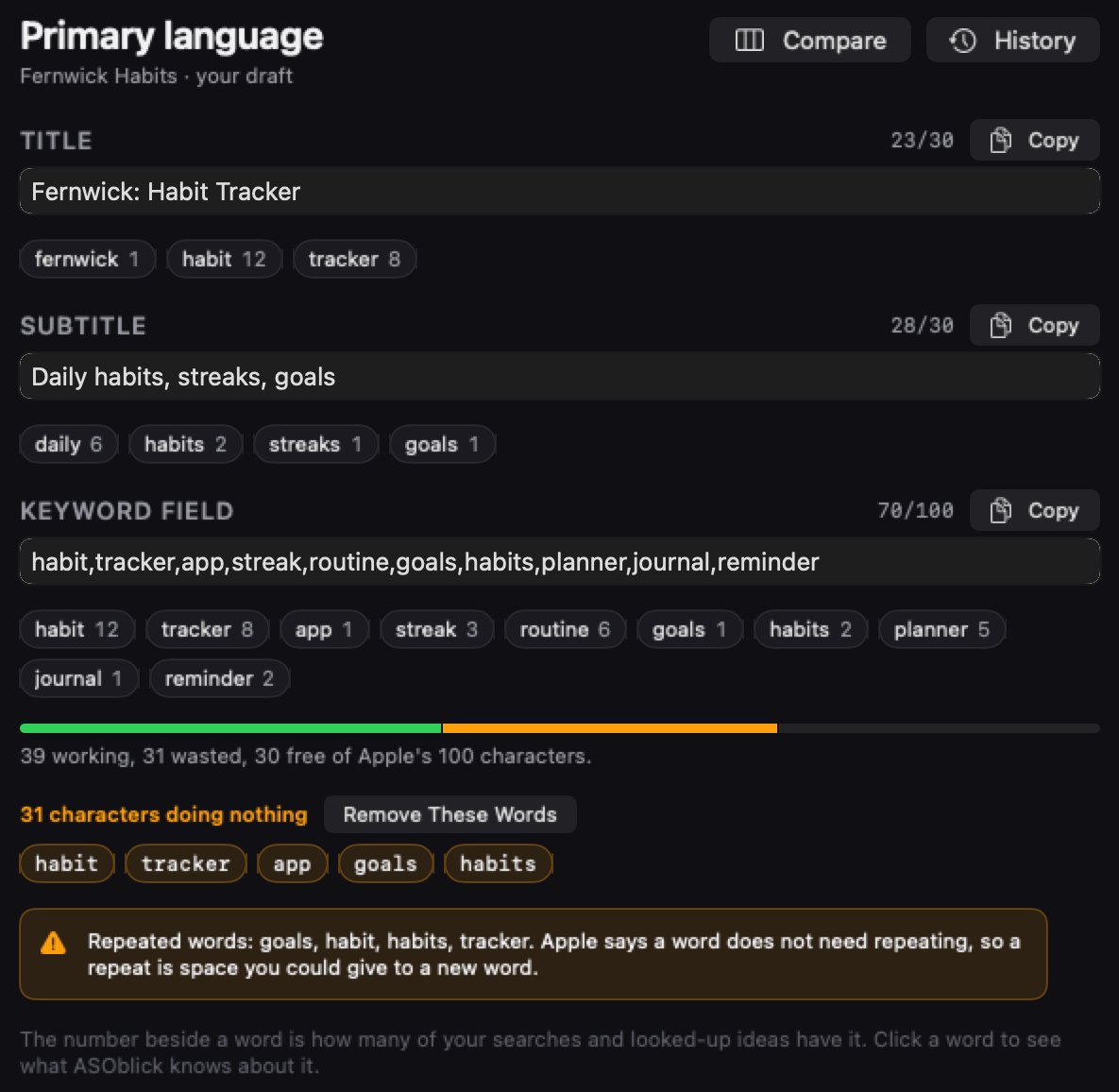
The Workshop is where you write the three fields, and your description, in any of the 50 languages Apple offers for a listing. Your title arrives filled in from your live App Store listing. Apple’s public lookup does not return the subtitle or the keyword field, so you paste those two in from App Store Connect once, and the Workshop keeps them with your draft. Every word is a chip with the number of your searches and looked-up ideas that hold it. Click one to see those searches, your rank in each country you track, and who ranks above you. Eighteen checks test what you type against rules Apple publishes, each with Apple’s words and a link to Apple’s page. A bar splits Apple’s 100 characters into working, wasted and free. Every wasted word carries its reason: already in the title or subtitle, in the field twice, the word “app”, or a plural of a word you already have. The Remove These Words button takes them out in one click. A separate row lists words ASOblick has not seen anyone search with, as its own reading. Under the fields, each search you track shows which of its words are in your three fields. When you have pasted the fields into App Store Connect, you click History, then I Published This. ASOblick saves the date and the fields. From that day the Log shows what your searches, ratings, category rank and written reviews did. With your sales connected, downloads and revenue join them.
The Workshop is part of Pro, Max and Agency.
Next on the path: How long App Store Optimization takes to move your rankings